I still remember the day my neighbor’s computer crashed, and they lost all their family photos and important documents. It was a harsh reminder of the importance of how to back up your computer to an external hard drive. The common myth is that backing up your computer is a complicated, time-consuming process that only tech experts can handle. But the truth is, it’s simpler than you think, and I’m here to guide you through it. I’ve seen many people struggle with this, and it’s often due to a lack of clear, step-by-step instructions.
In this article, I’ll share my personal experience and expertise to walk you through the process of safeguarding your digital life. You’ll learn how to set up a reliable backup system and breathe easy knowing your files are safe. I’ll provide you with practical advice, annotated screenshots, and clear diagrams to make the process as smooth as possible. By the end of this guide, you’ll be able to confidently back up your computer to an external hard drive, and you’ll understand the importance of regular backups in protecting your precious data.
Table of Contents
Guide Overview: What You'll Need
Total Time: 30 minutes to 1 hour
Estimated Cost: $50 – $100
Difficulty Level: Easy
Tools Required
- Computer
- External Hard Drive with sufficient storage capacity
- USB Cable for connection
Supplies & Materials
- External Hard Drive with power cord if necessary
Step-by-Step Instructions
- 1. First, let’s start with the basics: connecting your external hard drive to your computer. This is a straightforward process, but it’s essential to get it right. Take one end of the USB cable and plug it into your external hard drive, then take the other end and plug it into a free USB port on your computer. Make sure it’s properly seated and secure.
- 2. Next, we need to identify your external hard drive on your computer. To do this, navigate to your computer’s file explorer (this might be called “My Computer” or “This PC” depending on your operating system). Look for the external hard drive under the “Devices” or “Drives” section – it should be listed by its model name or as “External Hard Drive.” Take note of the drive letter assigned to it, as we’ll need this later.
- 3. Now, it’s time to prepare your computer for backup. This involves making sure you have all the necessary permissions and that your computer is set up to recognize the external hard drive as a valid backup destination. If you’re using a Windows computer, you might need to install drivers for your external hard drive – don’t worry, these usually come with the device or can be downloaded from the manufacturer’s website.
- 4. The next step is to select what you want to back up. This could be your entire computer, or just specific files and folders. If you’re not sure, it’s always best to err on the side of caution and back up as much as possible. Consider backing up your documents, pictures, videos, and any other data that’s important to you. Make a mental note or write down the locations of these files so you can easily find them in the next steps.
- 5. We’re going to use the built-in backup software that comes with your computer’s operating system. For Windows, this is Windows Backup, and for Mac, it’s Time Machine. Open the appropriate program and follow the prompts to select your external hard drive as the backup destination. You’ll be asked to choose what you want to back up and how often you want the backup to occur – consider setting it to automatic so you don’t have to think about it.
- 6. Now, let’s set up the backup schedule. This is where you decide how often you want your computer to back up to the external hard drive. You can choose to do this manually, or set it to automatic, which is recommended. If you choose automatic, your computer will back up your selected files and folders at the same time every day or week, depending on your preference.
- 7. Finally, verify your backup to make sure everything is working correctly. After the first backup is complete, go back to your external hard drive and check that all the files and folders you selected are present and up to date. It’s also a good idea to test the backup by restoring a small file or folder to its original location on your computer. If everything looks good, you can breathe easy knowing your digital life is safe.
Safeguard Your Digital Life
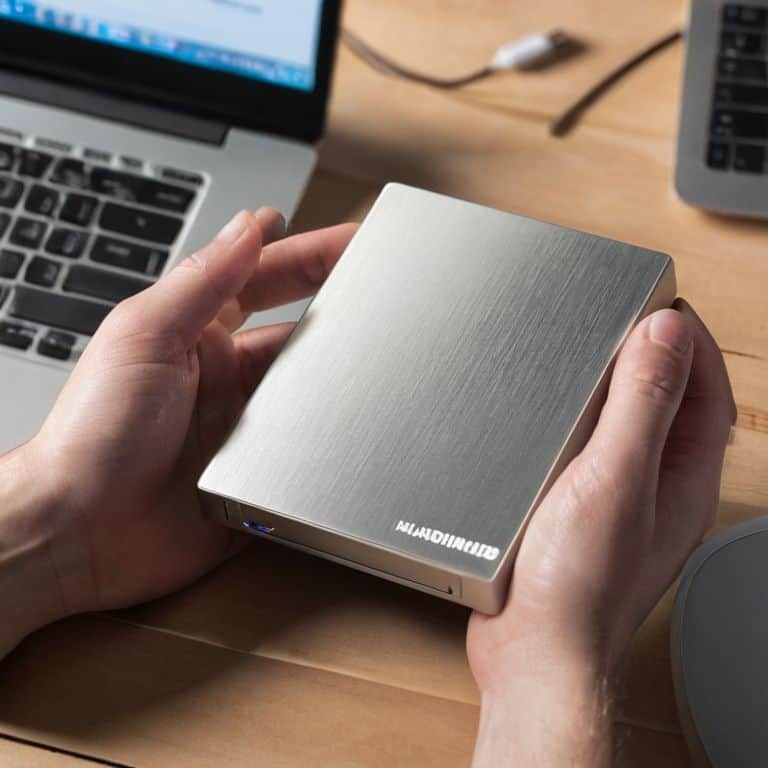
Now that you’ve got your backup up and running, let’s talk about safeguarding your digital life. This is where things can get a bit more nuanced, but don’t worry, I’ve got you covered. When it comes to choosing an external hard drive, you want to make sure you’re selecting one that’s reliable and has enough storage space for all your important files. I always recommend opting for a drive with a good balance of capacity and speed.
In terms of backup frequency best practices, it’s generally a good idea to back up your data at least once a week, but this can vary depending on how often you use your computer and how much data you’re generating. If you’re someone who works with large files or sensitive information, you may want to consider backing up your data more frequently. You can also look into automatic backup software to make the process even easier and less prone to human error.
To take your backup game to the next level, consider exploring cloud vs local backup options. While local backups are great for large files and quick access, cloud backups provide an extra layer of security in case your external hard drive is lost, stolen, or damaged. By combining both methods, you can ensure that your data is fully protected and easily recoverable in case of an emergency.
Choosing the Right External Hard Drive
When it comes to choosing the right external hard drive, I always recommend considering a few key factors. First, think about the total storage space you’ll need – a good rule of thumb is to opt for a drive that’s at least twice the size of your computer’s internal storage. You should also look for a drive with a fast connection type, such as USB 3.0 or Thunderbolt 3, to ensure speedy backups.
In my experience, a 1TB or 2TB external hard drive is a great starting point for most users. Additionally, consider a drive with automatic backup software and encryption for added security. Some popular brands, like Western Digital and Seagate, offer reliable and affordable options. By selecting the right external hard drive, you’ll be well on your way to safeguarding your digital life.
Mastering Automatic Backup Software
To take your backup game to the next level, let’s explore automatic backup software. I recommend using tools like Acronis or EaseUS, which can be set up to run backups at scheduled intervals. This way, you can ensure your data is consistently protected without having to lift a finger.
When choosing automatic backup software, consider the ease of use and the level of customization it offers. Some popular options even allow you to set up multiple backup schedules and choose specific files or folders to prioritize. By investing a few minutes in setting up automatic backups, you’ll gain peace of mind knowing your digital life is safeguarded around the clock.
Essential Backup Tips for Peace of Mind
- Always verify the compatibility of your external hard drive with your computer’s operating system before making a purchase
- Use a consistent naming convention for your backups, including the date and time, to easily identify and manage them
- Schedule regular backups, ideally daily, to ensure your data is up-to-date and protected against unexpected losses
- Consider using a backup software that offers encryption to add an extra layer of security for your sensitive files
- Test your backups periodically by restoring a small set of files to ensure the backup process is working correctly and your data is recoverable
Key Takeaways for a Secure Digital Life
Always prioritize backing up your computer to an external hard drive to prevent data loss in case of hardware failure or cyber attacks
Selecting the right external hard drive for your needs involves considering factors such as storage capacity, compatibility, and durability to ensure seamless backups
Mastering automatic backup software is crucial for maintaining regular backups without manual intervention, and choosing the right software can simplify the process and provide peace of mind
Backing Up with Confidence
The moment you take control of your digital backups is the moment you can finally breathe easy, knowing your memories, work, and life are safe from the unexpected – it’s not just about storing files, it’s about securing your peace of mind.
Leo Maxwell
Backing Up Your Digital Life: A Job Well Done

You’ve made it to the final step in our journey to safeguard your digital life. By now, you should have a clear understanding of how to back up your computer to an external hard drive, from choosing the right hardware to mastering automatic backup software. Remember, the key to a successful backup strategy is consistency and patience. Take a moment to review the steps we’ve covered, and don’t hesitate to reach out if you have any further questions or concerns. Your digital life is worth the extra effort, and with these skills, you’ll be well on your way to protecting your precious files.
As you close this guide, I want to leave you with a sense of empowerment and confidence in your ability to manage your technology. Backing up your computer is just the beginning – it’s a stepping stone to a broader understanding of how your devices work and how you can get the most out of them. Don’t be afraid to explore, to try new things, and to learn from your mistakes. With time and practice, you’ll become the master of your digital domain, and the sense of accomplishment you’ll feel will be incredibly rewarding. So go ahead, take a deep breath, and enjoy the peace of mind that comes with knowing your digital life is safe and secure.
Frequently Asked Questions
What happens if I forget to plug in my external hard drive and a backup is scheduled?
Don’t worry, it’s an easy mistake to make. If you forget to plug in your external hard drive and a backup is scheduled, most automatic backup software will simply wait until the drive is connected again to complete the backup. Some programs will even send you a notification to remind you to plug it in, so you can stay on top of your backups.
Can I use a cloud storage service instead of an external hard drive for my backups?
Absolutely, cloud storage is a great option. I actually use a combo of both external and cloud backups for my own files. Services like Google Drive, Dropbox, or OneDrive can be super convenient and automatically sync your files. Just keep in mind that internet speeds can affect backup times, and you’ll want to consider storage space and security when choosing a cloud service.
How often should I replace my external hard drive to ensure my backups remain secure?
Great question! I recommend replacing your external hard drive every 5-7 years or if you notice any signs of wear. Think of it like a smoke detector – you wouldn’t wait for it to fail, right? Regularly checking and updating your backup drive ensures your data stays safe and sound.