I still remember the day I realized that my desk setup was actually causing me more harm than good. I had been experiencing recurring back pain and eye strain, and it wasn’t until I took a step back to assess my workspace that I noticed the culprit: my poorly set up desk. It was then that I learned the importance of how to properly set up your desk ergonomics. I was shocked to discover that the “quick fix” guides I had been following were actually misleading me, leading to more problems down the line.
In this article, I’ll share my personal experience and expertise to guide you through the process of setting up your desk for optimal comfort and productivity. You’ll learn the practical tips and honest advice you need to create a workspace that works for you, not against you. I’ll walk you through the simple, step-by-step process of how to properly set up your desk ergonomics, so you can say goodbye to unnecessary strain and hello to a healthier, more efficient work environment.
Table of Contents
Guide Overview: What You'll Need
Total Time: 30 minutes to 1 hour
Estimated Cost: $0 – $50
Difficulty Level: Easy
Tools Required
- Tape Measure (for measuring desk and chair height)
- Level (to ensure monitor is straight)
- Pencil and Paper (for taking notes and calculations)
Supplies & Materials
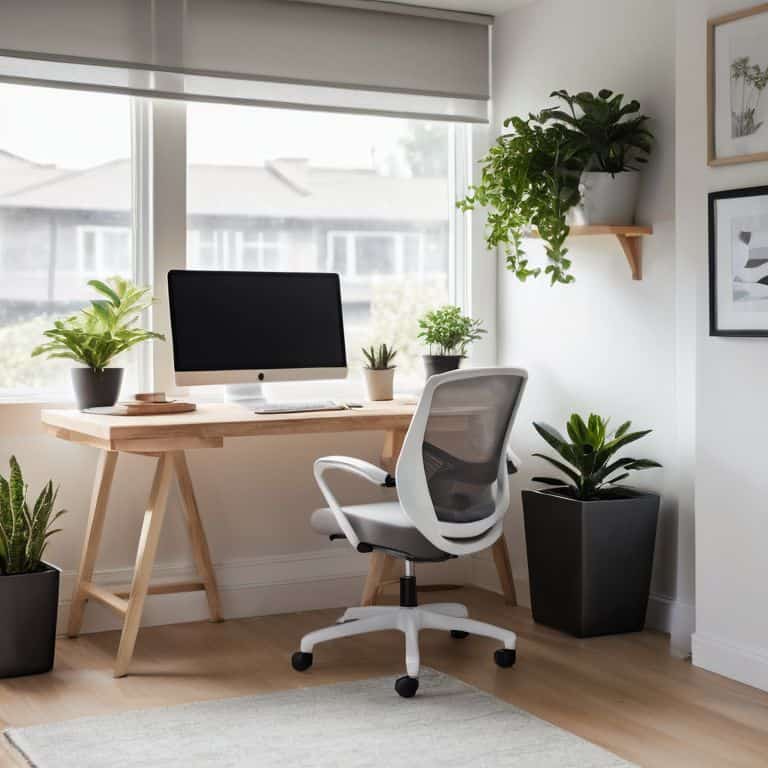
- Ergonomic Chair (adjustable height and lumbar support)
- Monitor Riser (to elevate monitor to eye level)
- Keyboard Tray (to position keyboard directly in front of body)
- Wrist Rest (for keyboard and mouse support)
- Document Holder (to keep papers at eye level)
Step-by-Step Instructions
- 1. First, let’s start with the basics: positioning your chair. This is the foundation of good desk ergonomics, and it’s essential to get it right. Adjust your chair height so that your feet are flat on the floor or on a footrest, and your knees are at or below hip level. This will help you maintain a straight posture and reduce strain on your back.
- 2. Next, let’s focus on monitor placement. The top of your monitor should be at eye level or slightly below, and it should be directly in front of you, not at an angle. This will help reduce eye strain and prevent you from tilting your head to see the screen. Also, make sure the monitor is at a comfortable distance from you, about 20-25 inches.
- 3. Now, let’s talk about keyboard and mouse placement. Your keyboard should be directly in front of your body, with your wrists straight and your elbows at a 90-degree angle. Your mouse should be close to your body and at the same height as your keyboard. This will help prevent repetitive strain injuries and make it easier to type and use your mouse.
- 4. The next step is to adjust your desk height. Your desk should be at a comfortable height for you, allowing you to work with your elbows at a 90-degree angle and your wrists straight. If your desk is too high, you can use a desk riser or a stack of books to raise your monitor and keyboard to a comfortable height.
- 5. Let’s not forget about lighting. Good lighting is essential for reducing eye strain and improving your overall comfort while working. Make sure the room is well-lit, and consider using a desk lamp to provide additional lighting. Avoid placing your monitor in a way that creates glare or reflections.
- 6. Now, let’s talk about cable management. Keeping your cables organized can help reduce clutter and improve your overall workflow. Use cable ties or a cable organizer to keep your cables tidy, and consider labeling them so you can easily identify which cable goes where.
- 7. Finally, let’s take a step back and evaluate your workspace. Take a look at your desk and make sure everything is positioned comfortably and within reach. Make any necessary adjustments to your chair, monitor, keyboard, and mouse to ensure that you’re working in a comfortable and ergonomic position. Remember, it’s all about finding a balance between comfort and productivity.
Mastering Desk Ergonomics

As you work on setting up your ideal workspace, it’s essential to consider the benefits of improving posture at work. When your desk is set up to promote good posture, you’ll notice a significant reduction in back and neck pain. To achieve this, focus on optimal desk height for typing, ensuring that your elbows are at a 90-degree angle and your wrists are straight. This simple adjustment can make a huge difference in your overall comfort and productivity.
In addition to desk height, it’s crucial to think about reducing eye strain from screens. Position your monitors directly in front of you, at a distance of about 20-25 inches, and adjust the monitor height for comfort. You want to be able to gaze slightly downward at the screen, rather than craning your neck upwards. By making these small adjustments, you can significantly reduce eye strain and create a more comfortable working environment.
When selecting an ergonomic chair, look for features such as adjustable lumbar support and a breathable fabric. These elements will help you maintain good posture throughout the day, even when you’re not actively thinking about it. By investing in a high-quality ergonomic chair and following the tips outlined in this guide, you can create a comfortable home office that promotes productivity and well-being.
Optimal Desk Height for Comfortable Typing
To achieve optimal desk height for comfortable typing, I recommend setting your desk to a height that allows your elbows to be at a 90-degree angle. This will help reduce strain on your wrists and shoulders. For most people, this means the top of their monitor should be at eye level, and their keyboard should be about 1-2 inches above their lap. I’ve found that using a keyboard tray can be a game-changer in achieving this perfect position. By adjusting the height and tilt of your keyboard, you can ensure that your wrists remain straight and your fingers can type away without any discomfort.
Standing Desk Conversion Tips for Success
When converting to a standing desk, it’s essential to ease into it. Start by standing for 30-60 minutes a day and gradually increase the time as your body adapts. You can also alternate between sitting and standing throughout the day. I recommend setting a reminder to switch every hour, so you don’t get too comfortable in one position. Additionally, consider investing in an anti-fatigue mat to reduce strain on your feet and legs.
To ensure a smooth transition, pay attention to your monitor height and keyboard position. Your screen should be at eye level, and your keyboard should be at a comfortable height to avoid straining your wrists. By making these small adjustments, you’ll be able to enjoy the benefits of a standing desk while maintaining proper ergonomics.
Ergonomic Essentials: 5 Key Tips for a Comfortable Workspace
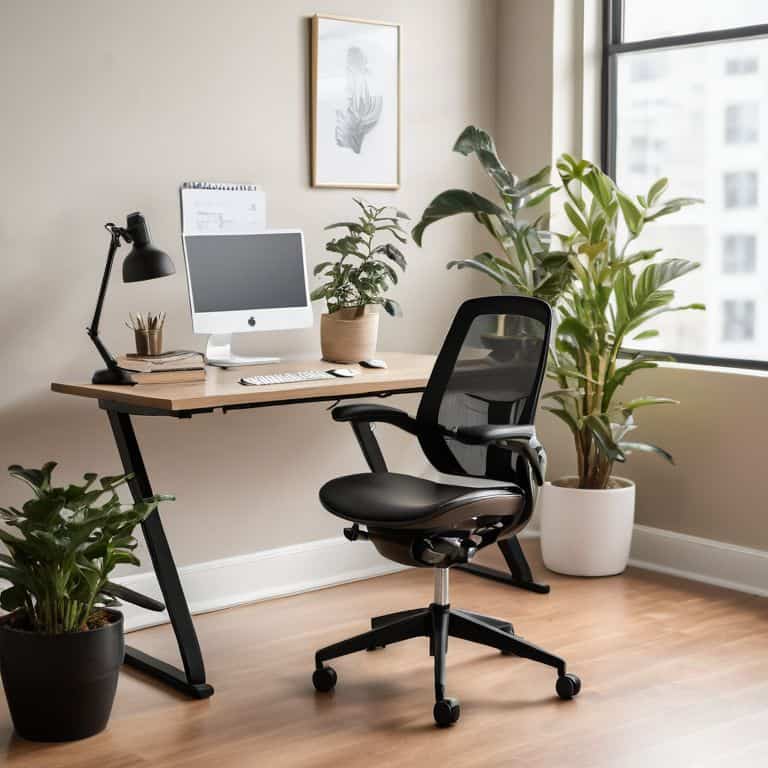
- Position your monitor directly in front of you, at a distance of about 20-25 inches, and at a height that allows you to gaze slightly downward
- Adjust your chair height to ensure your feet are flat on the floor or on a footrest, with your knees at or below hip level
- Place your keyboard directly in front of your body, with your wrists straight and your elbows at a 90-degree angle
- Keep your mouse close to your body and at the same height as your keyboard, to avoid reaching or bending
- Take regular breaks to stand up, stretch, and move around, ideally every 30-60 minutes, to reduce the risk of repetitive strain injuries
Key Takeaways for a Comfortable and Productive Workspace
Properly setting up your desk ergonomics is crucial for maintaining comfort and productivity, and can be achieved by following simple, step-by-step guidelines
Converting to a standing desk or adjusting your desk height to optimal levels can greatly reduce the risk of injury and improve your overall work experience
By investing a little time in mastering desk ergonomics, you can create a workspace that promotes well-being, efficiency, and job satisfaction, ultimately leading to a better work-life balance
Ergonomic Wisdom
A well-set desk is not just a matter of comfort, it’s a foundation for productivity and a guardian of your long-term health – get it right, and you’ll be amazed at the difference it makes in your daily workflow.
Leo Maxwell
Wrapping Up: You're Now a Desk Ergonomics Pro
As we conclude this journey to optimal desk ergonomics, let’s recap the key takeaways. We started by setting up your desk for ergonomic bliss, focusing on the main step-by-step instructions to get you comfortable and productive. Then, we dove into mastering desk ergonomics, exploring topics like standing desk conversion tips and finding the optimal desk height for comfortable typing. By following these guides, you’ve taken significant steps towards creating a workspace that supports your well-being and boosts your efficiency. Remember, it’s all about creating a harmonious balance between your body and your work environment.
Now that you’ve optimized your desk ergonomics, it’s time to reap the benefits. Imagine starting your workday feeling refreshed, focused, and ready to tackle any challenge that comes your way. By investing time in setting up your workspace, you’re investing in your health, happiness, and productivity. As you settle into your new ergonomic routine, don’t be surprised if you find yourself enjoying the process and looking forward to spending time at your desk. Keep in mind that ergonomics is a continuous process, and it’s essential to regularly assess and adjust your workspace to ensure it remains a haven of productivity.
Frequently Asked Questions
What are the most common mistakes people make when setting up their desk ergonomics?
Let’s take a look at some common pitfalls to avoid. I’ve seen folks overlook monitor height, resulting in neck strain, and forget to position their keyboard and mouse for comfortable typing. Others neglect to take breaks, leading to fatigue. Have you tried adjusting your chair height and taking short stretches throughout the day?
How often should I take breaks to stand up and stretch if I'm using a standing desk?
When using a standing desk, I recommend taking a break to sit or stretch every 30-60 minutes. This allows your body to rest and recharge. Try setting a reminder on your phone or putting a note on your monitor to remind you to move around and stretch – your body (and mind) will thank you!
Are there any specific ergonomic accessories that can help reduce eye strain and improve posture?
For reducing eye strain and improving posture, I swear by a good document holder and a back support cushion. These simple additions can make a huge difference. I also recommend investing in a monitor riser with built-in cable management to keep your screen at the perfect height and reduce clutter.