I still remember the frustration of dealing with a slow internet connection at my previous job as an IT trainer. It turned out that our router was set to a congested wifi channel, causing all sorts of problems. After figuring out how to find the best wifi channel for your router, our internet speed increased significantly, and our team’s productivity soared. It’s amazing how such a simple tweak can make a huge difference. I’ve since made it my mission to help others avoid the headaches of wifi congestion by sharing my knowledge on this often-overlooked topic.
In this article, I’ll walk you through a step-by-step guide on how to find the best wifi channel for your router, cutting through the technical jargon and focusing on practical, easy-to-follow advice. You’ll learn how to identify the most congested channels, optimize your router’s settings, and ensure a smooth, hassle-free connection. My goal is to empower you with the knowledge to take control of your wifi network, so you can focus on more important things than dealing with frustrating internet slowdowns. By the end of this guide, you’ll be equipped with the skills to find the perfect wifi channel for your router and enjoy a faster, more reliable internet connection.
Table of Contents
Guide Overview: What You'll Need
Total Time: 30 minutes to 1 hour
Estimated Cost: Free – $20
Difficulty Level: Easy
Tools Required
- Computer or Mobile Device (with internet access)
Supplies & Materials
- Wifi Analyzer Software or App (optional, but recommended)
Step-by-Step Instructions
- 1. First, let’s start with the basics: to find the best WiFi channel for your router, you’ll need to download a WiFi channel scanner app. I recommend using WiFi Analyzer for Android or WiFi Explorer for macOS, as they’re both easy to use and provide a clear overview of the WiFi landscape in your area. Once you’ve downloaded the app, open it and wait for it to scan the nearby networks.
- 2. Next, you’ll see a list of all the nearby WiFi networks, along with the channels they’re using. Take a closer look at the channel usage graph, which will give you an idea of how congested each channel is. You’re looking for a channel with the least amount of overlap, as this will provide the best performance for your router.
- 3. Now, let’s identify the optimal channel: look for the channel with the fewest number of networks using it. You can also use the app’s built-in channel rating system, which will give you a score based on the channel’s performance. The higher the score, the better the channel.
- 4. Once you’ve identified the optimal channel, it’s time to log in to your router: open a web browser and type in the router’s IP address (usually 192.168.0.1 or 192.168.1.1). You’ll then need to enter your admin username and password to access the router’s settings.
- 5. In the router’s settings, navigate to the wireless settings section and look for the channel selection option. Select the optimal channel you identified earlier and save the changes. It may take a few seconds for the changes to take effect, so be patient.
- 6. After saving the changes, go back to your WiFi channel scanner app and rescan the area to see if the changes have improved your WiFi performance. You should see a reduction in congestion and an improvement in your network’s overall performance.
- 7. Finally, to ensure optimal performance, restart your router and any connected devices. This will ensure that all devices are using the new channel and that you’re getting the best possible performance from your WiFi network. Remember to also update your router’s firmware regularly to ensure you have the latest features and security patches.
Finding Your Best Wifi Channel

When it comes to router channel selection tips, it’s essential to consider the devices connected to your network. Different devices have varying WiFi capabilities, and some may perform better on specific channels. For instance, older devices might work better on channels 1, 6, or 11, which are generally less congested. To minimize WiFi network congestion, try to avoid using the same channel as your neighbors, if possible.
To improve WiFi signal strength, it’s crucial to reduce WiFi interference at home. This can be achieved by moving your router to a central location, away from walls and other obstacles. You can also use best WiFi channel scanner tools to identify the channels used by nearby networks and adjust yours accordingly. By doing so, you’ll be able to find the optimal channel for your router, resulting in a more stable and faster connection.
In addition to using WiFi channel scanners, you can also try reducing WiFi interference by switching to the 5GHz band, if your router supports it. This band typically has less congestion than the 2.4GHz band, resulting in a more stable connection. By following these tips and using the right tools, you’ll be able to find the optimal WiFi channel settings for your devices and enjoy a hassle-free online experience.
Selecting Optimal Router Settings
Now that we’ve tuned out interference, let’s select the optimal router settings. To do this, we’ll need to log in to our router’s admin panel – don’t worry, I’ll walk you through it. We’re looking for the wireless settings section, where we can adjust the channel width and mode. For most homes, a 20MHz channel width is a good starting point, as it provides a good balance between speed and stability.
In this section, we can also adjust the WiFi mode – I recommend setting it to “Mixed” or “Auto” to ensure compatibility with all devices. By making these adjustments, we can fine-tune our router’s settings to work in harmony with the best WiFi channel we found earlier, resulting in a faster and more reliable connection.
Tuning Out Interference at Home
Now that we’ve found the best WiFi channel for your router, let’s talk about minimizing interference from other devices in your home. You’d be surprised at how many devices can interfere with your WiFi signal – things like cordless phones, microwaves, and even your neighbor’s network can cause issues. To tune out this interference, try moving your router to a central location, away from walls and other obstacles. This will help your signal reach all areas of your home more evenly.
By reducing interference, you can enjoy a faster, more reliable connection. I also recommend switching to the 5GHz band if your router supports it, as it’s generally less prone to interference than the 2.4GHz band.
Fine-Tuning Your WiFi: 5 Essential Tips
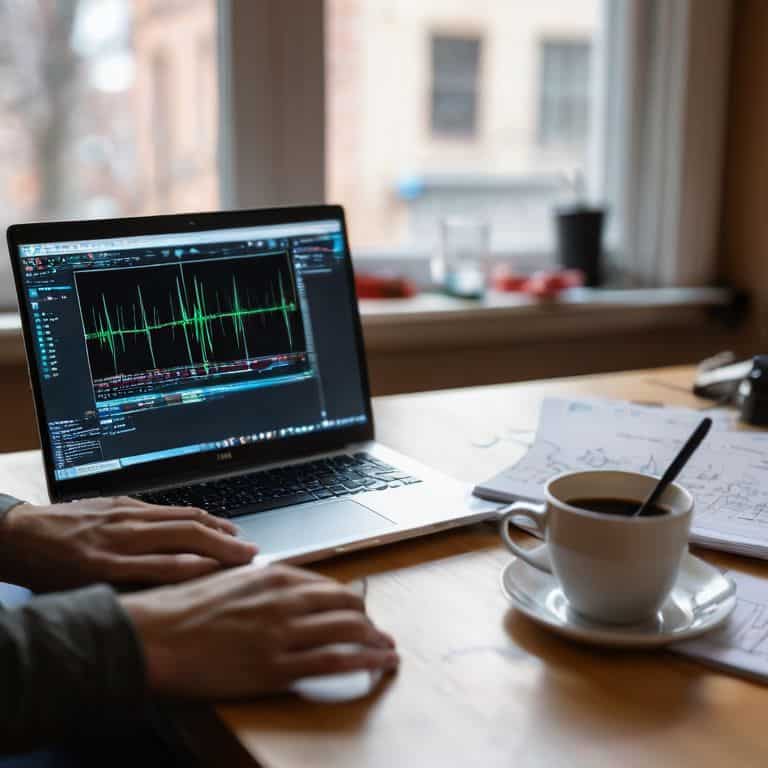
- Use a WiFi analyzer app to scan your network and identify channels with the least interference
- Consider switching to the 5GHz band if your router supports it, as it often has less interference than the 2.4GHz band
- Change the WiFi channel on your router to one that is not overlapping with nearby networks, using the channel scanner results as a guide
- Update your router’s firmware regularly to ensure you have the latest features and bug fixes that can improve WiFi performance
- Experiment with different channel widths, such as 20MHz or 40MHz, to find the optimal setting for your specific network environment
Key Takeaways for a Hassle-Free WiFi Connection
To optimize your router’s WiFi performance, it’s crucial to find and use the least crowded channel, which can be achieved by using a WiFi channel scanner or analyzer.
Minimizing interference from other devices in your home is vital, and this can be done by changing the WiFi channel on your router to one that is less prone to overlap with other networks.
By following the step-by-step guide and adjusting your router settings accordingly, you can significantly improve your WiFi connection’s speed and reliability, making your online experience smoother and more enjoyable.
A Word of Wisdom
Finding the best WiFi channel for your router is not just about tweaking settings, it’s about creating a harmonious balance between your devices and your environment – it’s a small step towards a smarter, more connected home.
Leo Maxwell
Conclusion: Optimizing Your WiFi Experience
In our journey to find the best WiFi channel for your router, we’ve covered the essential steps, from tuning out interference at home to selecting optimal router settings. By following these guidelines, you’ll be well on your way to enjoying a hassle-free connection and making the most of your internet speed. Remember, the key to a smooth WiFi experience lies in understanding your network’s unique needs and taking the time to fine-tune your settings. With a little patience and practice, you’ll become a pro at navigating the world of WiFi optimization.
As you wrap up this project, I want to leave you with a final thought: taking control of your technology is a powerful feeling. By investing a little time in learning how to optimize your WiFi channel, you’re not only improving your internet experience but also empowering yourself to tackle more complex tech projects in the future. So, don’t be afraid to experiment, try new things, and push the boundaries of what you thought was possible – you never know what amazing things you might discover, and I’m excited to be a part of your tech journey.
Frequently Asked Questions
What if my router doesn't have a built-in WiFi channel scanner, do I need to buy a separate device?
No need to buy a separate device. You can use free software like Wi-Fi Analyzer on your smartphone or laptop to scan for nearby networks and find the best channel for your router. I’ll walk you through it in the next step, and it’s easier than you think.
How often should I be checking and potentially changing my WiFi channel for optimal performance?
Honestly, it depends on your environment, but I recommend checking your WiFi channel every 3-6 months. If you live in a densely populated area or have a lot of devices, you might need to check more often. Think of it like tuning a radio – if you start hearing static, it’s time to adjust the dial, or in this case, your WiFi channel.
Can using a WiFi channel scanner app on my smartphone give me accurate results for finding the best channel for my router?
While WiFi channel scanner apps can give you a general idea, they might not provide entirely accurate results since they’re scanning from your smartphone’s location, not the router’s. For the best results, I recommend using a laptop or desktop connected to the router to scan for channels, giving you a more precise reading of the WiFi landscape around your router.