I still remember the first time I realized my monitor wasn’t showing me the true colors of the images I was working with. I was trying to edit a photo, and the colors just didn’t seem right. That’s when I learned about how to calibrate your monitor for better color. It was a game-changer. The process was simpler than I thought, and the difference was like night and day. But what I’ve found over the years is that many people are put off by the idea of calibrating their monitor because they think it’s too technical or time-consuming.
In this article, I’ll walk you through the straightforward process of calibrating your monitor for better color. You won’t need any special technical knowledge, just a willingness to follow some simple steps. I’ll share my own approach, which I’ve refined over years of working with monitors and teaching others how to get the best out of their screens. By the end of this guide, you’ll know exactly how to make your monitor look its best, with colors that are accurate and vibrant. Whether you’re a graphic designer, a photographer, or just someone who wants to get the most out of their computer, this guide is for you.
Table of Contents
Guide Overview: What You'll Need
Total Time: 30 minutes to 1 hour
Estimated Cost: $0 – $100
Difficulty Level: Easy / Intermediate
Tools Required
- Color Calibration Device (optional, but recommended for accuracy)
- Computer with Internet Connection (for downloading calibration software)
- Monitor with Adjustable Settings (e.g., brightness, contrast, color temperature)
Supplies & Materials
- Calibration Software (free or paid, depending on the program)
- Color Calibration Pattern Images (available online, for manual calibration)
Step-by-Step Instructions
- 1. First, let’s get started by preparing your monitor for calibration – this means turning it on and letting it warm up for about 30 minutes, which allows the display to stabilize and give you the most accurate calibration results. During this time, you can gather the necessary tools and software for the calibration process.
- 2. Next, you’ll need to adjust the monitor’s settings to its default or calibration mode – this usually involves pressing a combination of buttons on the monitor, such as the menu button and one of the directional buttons, to reset the display settings to their factory defaults. It’s essential to consult your monitor’s manual or online documentation to find the specific instructions for your model.
- 3. Now, it’s time to download and install the calibration software – there are several options available, both free and paid, but for this guide, we’ll be using a popular and user-friendly option. Once the software is installed, launch it and follow the on-screen instructions to begin the calibration process.
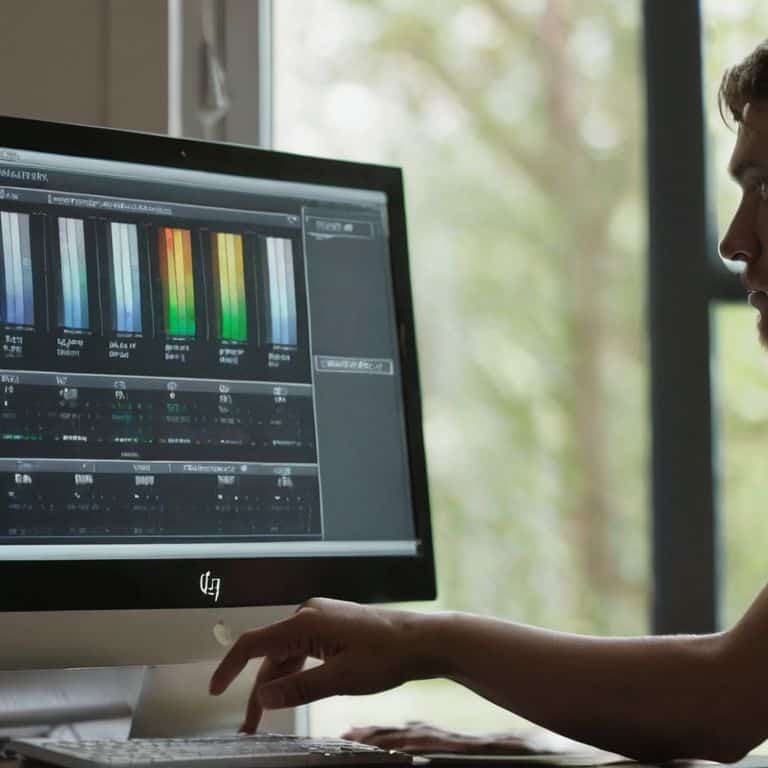
- 4. The calibration software will guide you through a series of color patterns and tests – these are designed to help the software understand how your monitor displays different colors and adjust its settings accordingly. It’s crucial to follow the on-screen instructions carefully and make sure you’re in a room with minimal lighting changes to ensure accurate results.
- 5. As you progress through the calibration process, you’ll be asked to adjust the brightness and contrast of your monitor – this is where you’ll start to see the differences in color representation. Be patient and take your time, as these adjustments can be subtle, and it’s essential to get them just right for optimal color accuracy.
- 6. Once you’ve completed the calibration process, the software will provide you with a summary of the changes made to your monitor’s settings – take a moment to review these changes and understand what adjustments were made. This will help you appreciate the improvements in color representation and give you a better understanding of your monitor’s capabilities.
- 7. Finally, to verify the calibration results, open a few of your favorite images or videos and take a close look at the colors – you should notice a significant improvement in color accuracy and representation. If you’re not satisfied with the results, don’t worry, you can always re-run the calibration process or adjust the settings manually to fine-tune the results.
Calibrate for Better Color
When it comes to color calibration techniques for monitors, there are a few things to keep in mind. First, it’s essential to understand that different types of content require different calibration settings. For example, if you’re a gamer, you’ll want to prioritize fast response times and vivid colors, which can be achieved by adjusting the color temperature settings for monitors. On the other hand, if you’re a graphic designer, you’ll need to focus on accuracy and consistency, which may require the use of professional monitor calibration tools.
To take your calibration to the next level, consider investing in display calibration software reviews to find the best tool for your needs. These software programs can help you fine-tune your monitor’s settings and ensure that your colors are accurate and consistent. Additionally, you can use online resources to run monitor color accuracy tests and identify any areas for improvement.
By following these tips and using the right tools, you can achieve better color representation on your monitor. Remember to always start with a clean slate by restarting your computer and monitor before calibration. This will ensure that any temporary glitches or settings are reset, allowing you to get an accurate reading. With a little patience and practice, you’ll be enjoying vibrant, accurate colors in no time.
Master Display Calibration Software
To truly master display calibration, you’ll want to explore the various software options available. I’ve had the chance to try out a few, and I must say, some stand out from the rest. For instance, CalMAN and DisplayCAL are two popular choices that offer a range of features to help you achieve optimal color accuracy.
When choosing a software, consider what features are important to you. Do you need support for multiple monitors or advanced color profiling? By selecting the right software for your needs, you’ll be well on your way to unlocking your monitor’s full potential and enjoying stunning colors.
Unlock Color Calibration Techniques
Now that we’ve covered the basics of calibrating your monitor, let’s dive deeper into some advanced color calibration techniques. One method is to use the display’s built-in calibration tool, which can guide you through a series of steps to optimize color accuracy. Another approach is to utilize third-party calibration software, such as CalMAN or DisplayCAL, which offer more precise control over color settings.
By exploring these techniques, you can unlock the full potential of your monitor’s color capabilities, resulting in a more immersive and engaging visual experience. Whether you’re a graphic designer, gamer, or simply a movie enthusiast, precise color calibration can make a significant difference in your overall viewing pleasure.
5 Expert Tips to Supercharge Your Monitor's Color Accuracy
- Start with a clean slate: Ensure your monitor is turned on for at least 30 minutes before calibration to stabilize the display
- Choose the right tool for the job: Select a high-quality calibration software that supports your monitor’s specific features and connectivity options
- Get the lighting just right: Calibrate your monitor in a room with neutral lighting to prevent external light sources from interfering with the calibration process
- Be patient and precise: Take your time when adjusting the color settings, and make small adjustments to get the most accurate results
- Don’t forget to profile: Create a unique color profile for your monitor to ensure that the calibrated settings are applied consistently across all applications and programs
3 Key Takeaways for a Perfectly Calibrated Monitor
By following the step-by-step guide, you’ll be able to calibrate your monitor for better color representation, enhancing your overall viewing experience
Mastering display calibration software and techniques, such as those discussed in the ‘Unlock Color Calibration Techniques’ and ‘Master Display Calibration Software’ sections, will give you the skills to optimize your monitor’s color accuracy
Remember, calibration is not a one-time task – regularly checking and adjusting your monitor’s settings will ensure that your colors remain vibrant and accurate over time, making it an essential part of your tech maintenance routine
Calibration Wisdom
Calibrating your monitor is not just about tweaking settings, it’s about unlocking a world of vibrant colors and precise details that bring your digital experience to life.
Leo Maxwell
Conclusion: Bringing Your Monitor to Life
As we’ve journeyed through the world of monitor calibration, you’ve learned the essential steps to unlock stunning colors and discovered how to master display calibration software. From understanding the basics of color representation to diving into the specifics of calibration techniques, we’ve covered it all. Remember, the key to a perfectly calibrated monitor is patience and attention to detail. By following the steps outlined in this guide, you’ll be well on your way to enjoying a viewing experience that’s more vibrant and immersive than ever before.
Now that you’ve completed the calibration process, take a step back and admire your handiwork. With your newly calibrated monitor, you’ll be able to appreciate the full range of colors in your favorite games, movies, and shows. As you explore the world of calibrated displays, keep in mind that practice makes perfect, and don’t be afraid to experiment and adjust your settings to suit your unique preferences. Happy viewing, and I look forward to sharing more tech tips and tricks with you in the future!
Frequently Asked Questions
Will calibrating my monitor affect the performance of my graphics card?
Don’t worry, calibrating your monitor won’t impact your graphics card’s performance. It’s all about adjusting the display settings to show accurate colors, not altering the graphics card’s capabilities. Think of it like fine-tuning a TV – it enhances the viewing experience without affecting the internal hardware.
How often should I calibrate my monitor to ensure optimal color accuracy?
To keep your monitor looking its best, I recommend calibrating it every 1-3 months, depending on usage. If you notice colors appearing off or you’ve made significant changes to your setup, it’s a good idea to recalibrate sooner. Think of it like getting a regular tune-up for your car – it keeps everything running smoothly and ensures optimal performance.
Can I use the same calibration settings for multiple monitors or do they need to be calibrated individually?
Great question – while it’s tempting to use the same calibration settings for multiple monitors, I recommend calibrating each one individually for the best results. This ensures that each display’s unique characteristics are taken into account, giving you the most accurate colors possible.