I still remember the first time I tried to build a PC – it was a daunting task, filled with confusing specs and intimidating instructions. But what I’ve learned over the years is that the real barrier to entry isn’t the technology itself, but rather the misguided notion that you need to be a tech expert to succeed. The truth is, learning how to build a pc is a fun and rewarding experience that can be achieved with the right guidance. I’ve spent years simplifying complex tech concepts for my students, and now I’m excited to share my knowledge with you.
In this article, I’ll walk you through the process of building a PC from start to finish, covering everything from choosing the right components to troubleshooting common issues. My goal is to provide you with honest, no-hype advice that will empower you to take control of your tech projects. By the end of this guide, you’ll have the confidence to build a PC that meets your specific needs and budget. So, let’s get started on this exciting journey together, and I’ll show you that building a PC is easier than you think. With my step-by-step approach, you’ll be up and running in no time, and you’ll be wondering why you ever thought it was complicated in the first place.
Table of Contents
- Guide Overview: What You'll Need
- Step-by-Step Instructions
- How to Build a Pc
- Best Budget Gpu Options for a Smooth Gaming Experience
- Choosing the Right Cpu for Your Dream Machine
- 5 Essential Tips to Keep in Mind When Building Your PC
- Key Takeaways for Building Your Dream PC
- Building Your Dream PC
- You're Now a PC Building Master
- Frequently Asked Questions
Guide Overview: What You'll Need
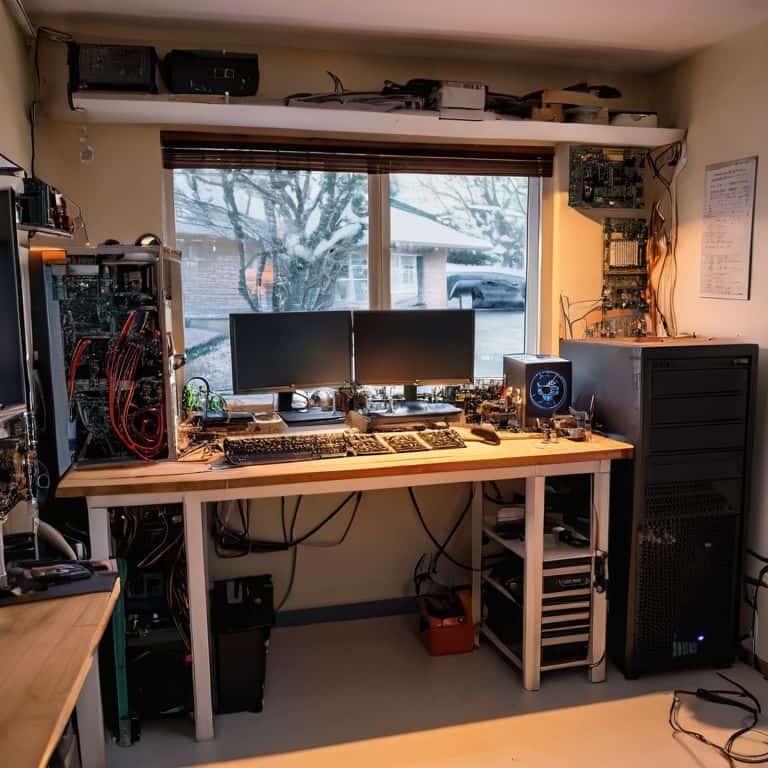
Total Time: 2 hours 30 minutes
Estimated Cost: $500 – $1500
Difficulty Level: Intermediate
Tools Required
- Screwdriver Phillips and flathead
- Torx driver for CPU cooler and motherboard
- Pliers for gripping small components
- Wire cutters for cutting cable ties and wires
- Cable ties for managing cables
Supplies & Materials
- CPU choose a compatible model
- Motherboard check for compatibility with CPU
- RAM at least 8 gigabytes recommended
- Storage Drive HDD or SSD, choose a size that suits your needs
- Power Supply wattage depends on system requirements
- Graphics Card optional, but recommended for gaming
- Case choose a size that fits your components, at least 12 inches tall and 8 inches wide
- Cooling System CPU cooler and case fans
Step-by-Step Instructions
- 1. First, gather all the necessary components for your PC build, including the CPU, motherboard, RAM, storage drive, power supply, and graphics card. Make sure you have all the screws, cables, and other accessories that come with each component. It’s also a good idea to familiarize yourself with the manual for each part, but don’t worry, we’ll be going through this step by step.
- 2. Next, prepare your workspace by laying out all the components and tools you’ll need, such as a screwdriver, pliers, and cable ties. It’s essential to work in a well-lit, static-free environment to prevent damage to your components. I always recommend using an anti-static wrist strap to ground yourself and prevent static electricity from damaging your parts.
- 3. Now, let’s start with the motherboard installation. Carefully remove the motherboard from its packaging and align it with the mounting holes on the case. Use the provided screws to secure the motherboard to the case, but be careful not to overtighten them. Make sure to connect the CPU power cable to the motherboard, as well as any other essential cables.
- 4. The next step is to install the CPU and CPU cooler. Locate the CPU socket on the motherboard and gently insert the CPU, making sure it’s aligned with the pins. Secure the CPU with the provided locking mechanism, and then apply a thin layer of thermal paste to the CPU die. Install the CPU cooler by following the manufacturer’s instructions, and connect the fan cable to the motherboard.
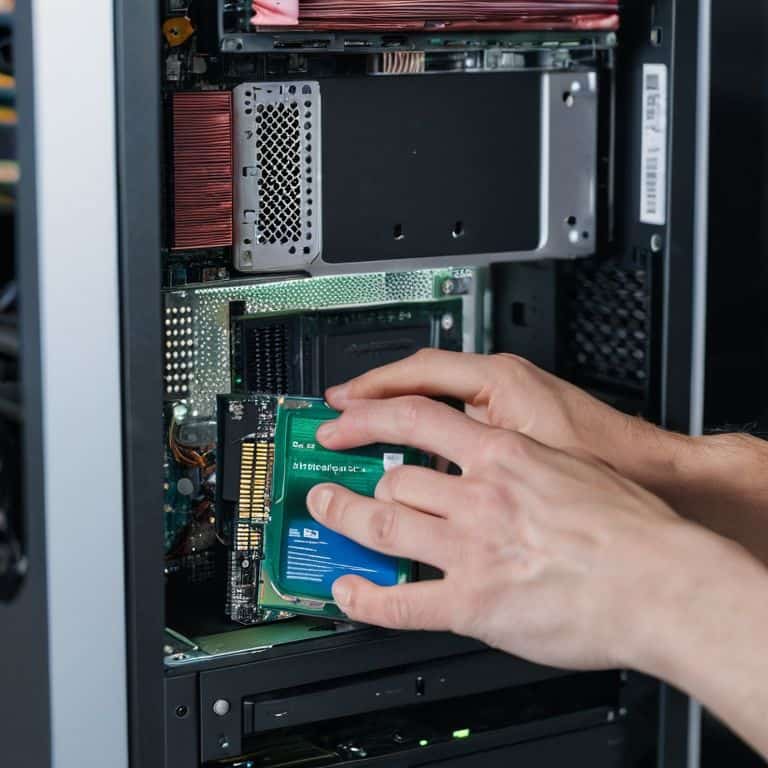
- 5. After that, it’s time to install the memory (RAM). Locate the RAM slots on the motherboard and insert the RAM modules at a 45-degree angle, making sure they’re aligned with the notches on the slot. Gently push the RAM modules into place until they click, and then secure them with the provided clips. It’s essential to check the RAM configuration in the motherboard manual to ensure you’re using the correct slots.
- 6. Now, let’s move on to installing the storage drive. Decide whether you want to use a hard drive, solid-state drive (SSD), or a combination of both. Connect the storage drive to the motherboard using a SATA cable, and then secure it to the case using the provided screws. Make sure to connect the power cable to the storage drive, as well as any other essential cables.
- 7. The final step is to connect the front panel headers and any other cables to the motherboard. This includes the power button, reset button, and LED indicators. Use the motherboard manual to identify the correct headers and connect the cables accordingly. Once you’ve connected all the cables, double-check your work to ensure everything is secure and properly connected.
How to Build a Pc
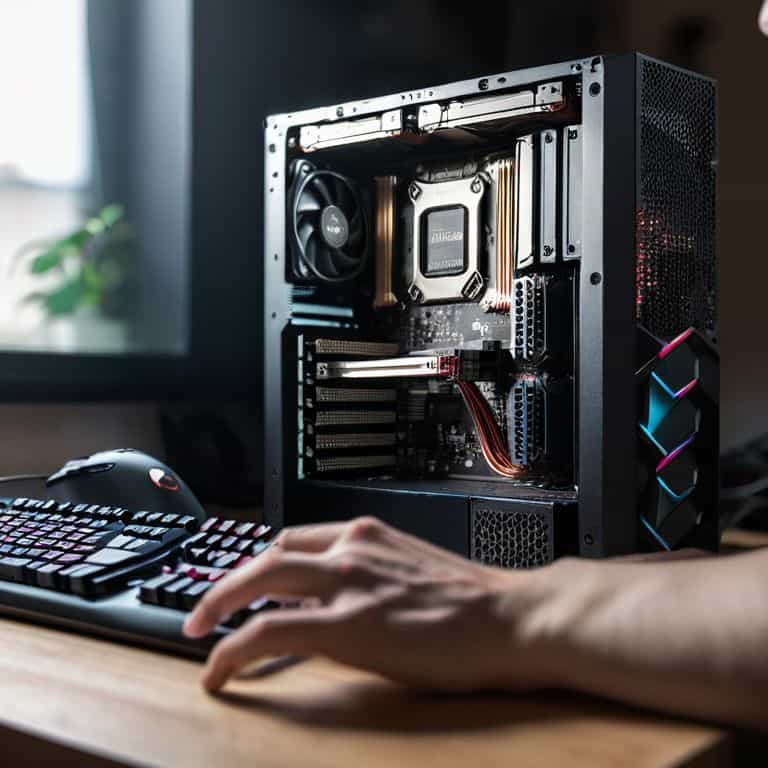
As we dive deeper into the world of PC building, it’s essential to consider choosing the right cpu for your needs. This decision will significantly impact your computer’s performance and overall user experience. When selecting a CPU, think about your primary uses for the computer, such as gaming, video editing, or general office work. For instance, if you’re an avid gamer, you’ll want a CPU with high clock speeds and multiple cores to handle demanding games.
In addition to the CPU, pc case selection criteria should also be a top priority. A well-ventilated case can make a huge difference in keeping your components cool and quiet. Look for a case with good airflow, cable management options, and enough room for your components. Some popular case options include those with tempered glass sides, USB ports, and sleek designs. By considering these factors, you can create a silent pc build that not only performs well but also looks great on your desk.
When it comes to cooling, installing a liquid cooling system can be a great way to keep your CPU and GPU at safe temperatures. This is especially important if you plan on overclocking for beginners, which can push your components to their limits. By taking the time to research and invest in a good cooling system, you can ensure your PC runs smoothly and quietly, even during intense gaming sessions or resource-heavy tasks.
Best Budget Gpu Options for a Smooth Gaming Experience
When it comes to a smooth gaming experience, your GPU is just as important as your CPU. For those on a budget, I recommend considering the NVIDIA GeForce GTX 1650 or the AMD Radeon RX 5500 XT. Both of these options offer great performance without breaking the bank. The GTX 1650 is a popular choice for 1080p gaming, while the RX 5500 XT provides a great balance between performance and power consumption.
These budget-friendly GPUs can handle modern games at medium to high settings, depending on the game’s requirements. I’ve seen the GTX 1650 handle Fortnite and League of Legends with ease, while the RX 5500 XT can handle more demanding games like Assassin’s Creed Odyssey. By choosing one of these GPUs, you’ll be able to enjoy a seamless gaming experience without overspending.
Choosing the Right Cpu for Your Dream Machine
When it comes to choosing the right CPU, it’s essential to consider your needs. Are you a gamer, content creator, or just a casual user? For most users, a mid-range CPU from Intel or AMD will suffice. I recommend looking for a CPU with a high clock speed and multiple cores. This will ensure smooth performance and efficient multitasking.
Think about your budget and what you want to achieve with your PC. If you’re looking to future-proof your machine, consider a CPU with integrated graphics and support for the latest technologies. I’ve found that making a checklist of your requirements helps narrow down the options. By doing so, you’ll be able to find the perfect CPU for your dream machine.
5 Essential Tips to Keep in Mind When Building Your PC
- Start by preparing a well-ventilated and static-free workspace to prevent damage to your components
- Ground yourself to prevent static electricity from damaging your PC’s sensitive parts
- Handle components like the CPU and GPU by the edges to avoid touching the sensitive parts and causing damage
- Use a high-quality thermal paste to ensure proper heat transfer from the CPU to the cooler
- Double-check all connections, including cables and jumpers, to ensure everything is securely connected and in the right place
Key Takeaways for Building Your Dream PC
Choose the right CPU and GPU combination for your specific needs, whether it’s for gaming, video editing, or general use, to ensure a seamless performance
Consider your budget and select components that offer the best balance between price and performance, such as opting for a budget GPU that still delivers smooth gaming experiences
Remember to start with the basics, like grounding yourself to prevent static electricity damage, and follow a step-by-step approach to assembling your PC, and don’t hesitate to restart your system if you encounter any issues – it’s often the simplest solution
Building Your Dream PC
The key to building a great PC isn’t just about throwing the latest components together, it’s about understanding how each piece fits into the bigger picture to create a harmonious, high-performance machine that’s all yours.
Leo Maxwell
You're Now a PC Building Master
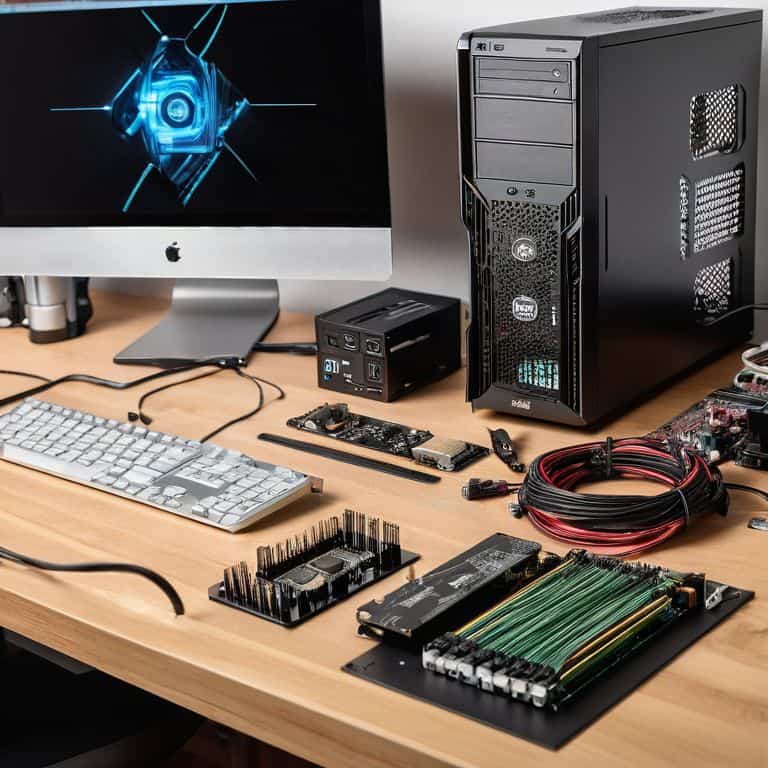
As we conclude this journey of building your dream PC, let’s summarize the key points we’ve covered. We started with the basics of choosing the right CPU, which is the brain of your operation, and then moved on to selecting the best budget GPU options for a smooth gaming experience. I’ve walked you through each step, from unboxing your components to the final setup, emphasizing the importance of patience and careful planning. By following these steps and considering your specific needs, you’ve successfully built a PC that meets your requirements.
Now that you’ve completed your PC build, I want to leave you with a final thought: the true power of technology lies not in the devices themselves, but in how they empower us to achieve our goals. Remember, building a PC is just the beginning – it’s a gateway to endless possibilities, from unleashing your creativity to exploring new worlds. Congratulations on taking the first step, and I wish you all the best on your future tech adventures!
Frequently Asked Questions
What are the essential tools I need to have before starting to build my PC?
Before we dive in, let’s get the essentials covered. You’ll need a few trusty tools: a screwdriver set, pliers, and a can of compressed air. I also recommend a Torx driver and a grounding strap to prevent static electricity damage. Don’t worry, I’ll walk you through each step – have you tried gathering these tools to get started?
How do I ensure proper airflow and cooling in my PC case?
To ensure proper airflow and cooling, I recommend checking your case’s airflow paths and installing fans to create a smooth airflow cycle. Make sure to dust filters regularly and consider liquid cooling for high-performance builds.
Can I mix and match components from different manufacturers or should I stick to a single brand?
When it comes to mixing and matching components, the short answer is yes, you can definitely do it. I’ve built many PCs using parts from different manufacturers without any issues. Just make sure to check compatibility, especially with the CPU and motherboard.