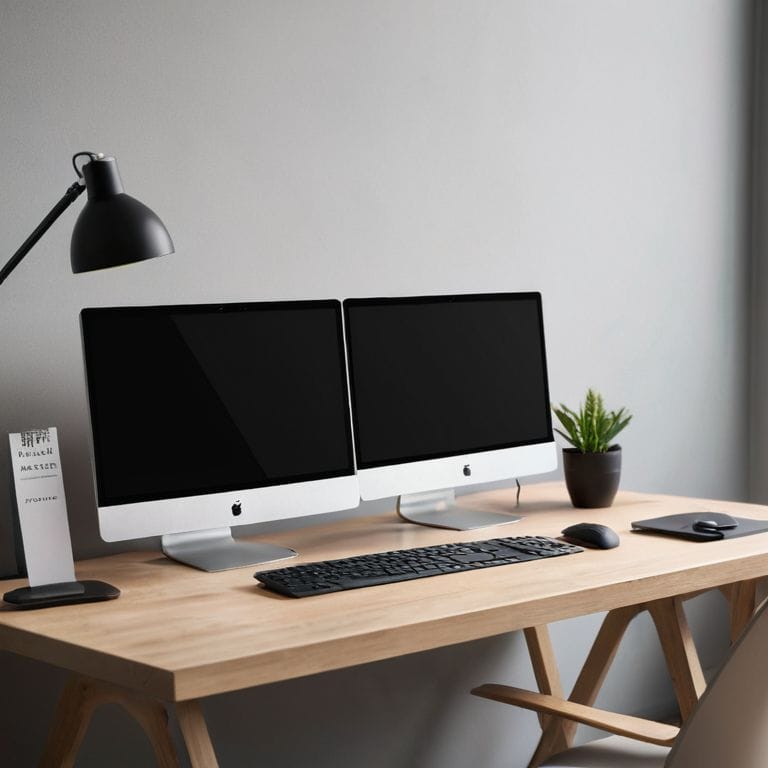
I still remember the day I discovered the power of a guide to dual monitor setup. I was working on a project with a tight deadline, and my single monitor was feeling like a bottleneck. A colleague suggested I add a second monitor, and I was skeptical at first, but the difference was like night and day. My productivity soared, and I was able to focus on the task at hand without feeling cramped. That’s why I’m excited to share my experience with you, and help you create your own efficient workspace with a dual monitor setup.
In this article, I’ll walk you through the process of setting up your dual monitors, from choosing the right hardware to configuring your desktop. I’ll provide you with practical tips and step-by-step instructions to ensure a seamless transition. You’ll learn how to overcome common obstacles and make the most out of your new setup. My goal is to empower you with the knowledge to create a workspace that suits your needs, and helps you stay focused and productive. By the end of this guide, you’ll be able to enjoy the benefits of a dual monitor setup, and take your work to the next level.
Table of Contents
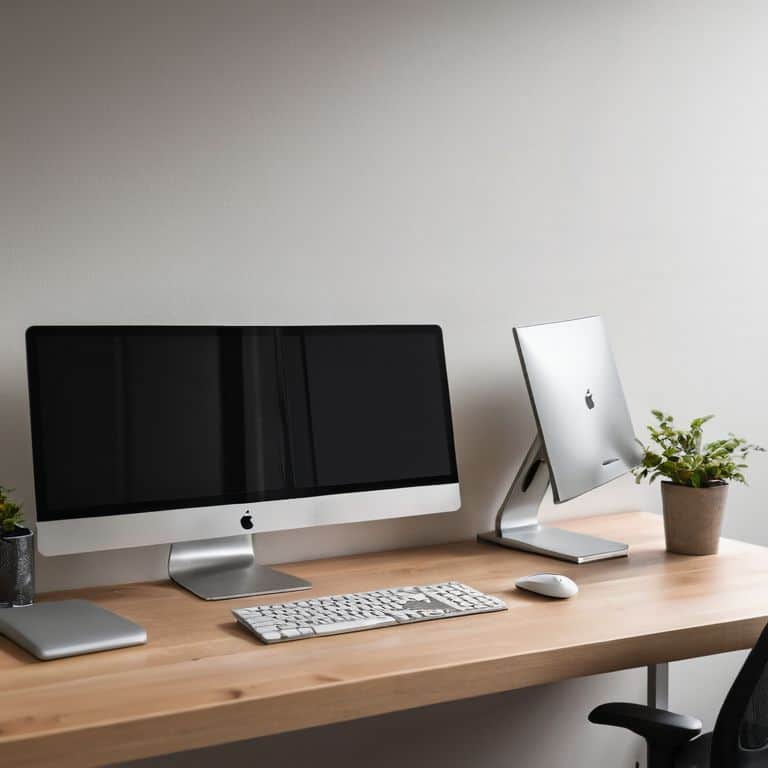
Guide Overview: What You'll Need
Total Time: 1 hour 30 minutes
Estimated Cost: $50 – $100
Difficulty Level: Easy
Tools Required
- Screwdriver (for mounting monitors)
- Cable ties (for cable management)
- Measuring tape (for measuring desk space)
- Level (for ensuring monitors are level)
Supplies & Materials
- Dual monitor stand (or two single monitor stands)
- Monitor cables (e.g., HDMI, DisplayPort, or VGA)
- Power strip (for powering both monitors)
- Cable management box (optional)
Step-by-Step Instructions
- 1. First, let’s start with the basics: ensure your computer can support a dual monitor setup. This means checking if your computer has the necessary ports to connect two monitors. Most modern computers have at least two ports, such as HDMI, DisplayPort, or VGA. Take a look at the back of your computer and see what options you have. If you’re not sure, don’t worry, we’ll get to troubleshooting later.
- 2. Next, gather all the necessary cables and adapters. You’ll need one cable for each monitor, and possibly an adapter if your computer’s ports don’t match your monitors’. Make sure you have the right cables and adapters before moving on to the next step. I like to make a checklist to keep track of everything I need, and I recommend you do the same.
- 3. Now, connect your monitors to your computer. Take one end of the cable and plug it into the back of your computer, and the other end into the monitor. Repeat this step for the second monitor. If you’re using an adapter, make sure it’s securely connected to both the computer and the monitor. Don’t worry if your monitors don’t turn on yet, we’ll get to that in a minute.
- 4. Once your monitors are connected, configure your display settings. On Windows, you can do this by right-clicking on the desktop and selecting “Display settings”. On Mac, you can find this option in System Preferences. From here, you can select which monitor you want to use as your primary display, and how you want your desktop to be arranged.
- 5. Now it’s time to arrange your monitors to your liking. You can choose to have your monitors side by side, or one above the other. You can also adjust the resolution and orientation of each monitor separately. Take some time to play around with the settings and find a configuration that works for you. Remember, the goal is to create a comfortable and efficient workspace.
- 6. If you encounter any issues, such as a monitor not turning on or the image looking distorted, don’t panic. Have you tried turning it off and on again? Sometimes, a simple reboot can resolve the issue. If not, we can troubleshoot further by checking the cables and adapters, or adjusting the display settings.
- 7. Finally, test your dual monitor setup to make sure everything is working as expected. Open a few windows and drag them around to make sure they’re displaying correctly on both monitors. You can also try watching a video or playing a game to see how it looks on the new setup. If everything looks good, congratulations, you’ve successfully set up your dual monitor setup!
A Guide to Dual Monitor Setup
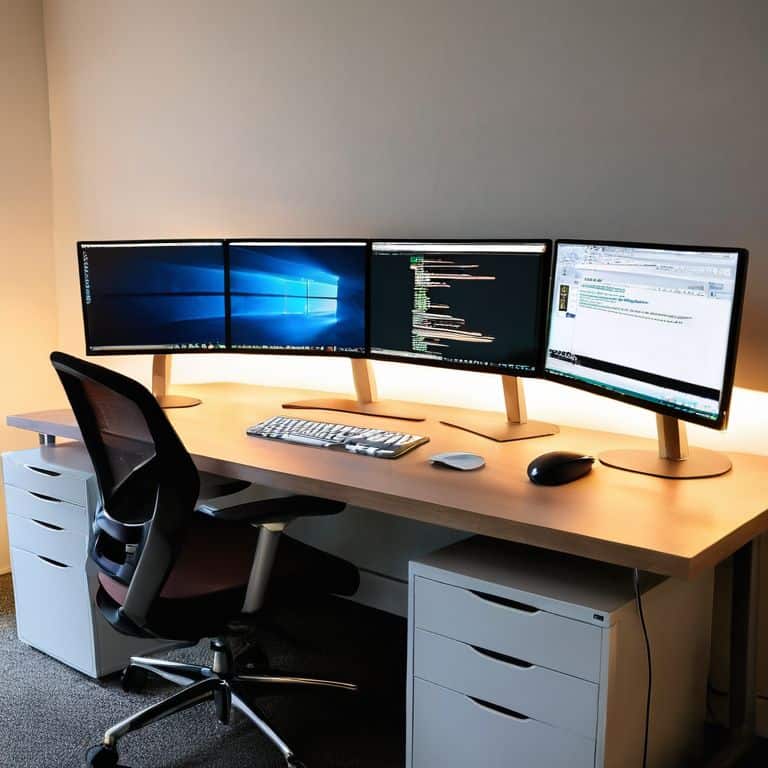
As you’ve completed the initial setup, let’s dive into some benefits of multiple monitors that can enhance your productivity. One of the most significant advantages is the ability to multitask efficiently. With two monitors, you can have your email or messaging apps open on one screen while working on a project on the other. This setup allows for seamless switching between tasks, reducing the time spent on navigating through multiple windows.
When it comes to dual monitor desk setup ideas, ergonomics play a crucial role. Investing in the best dual monitor stands can make a significant difference in your comfort and productivity. Look for stands that allow you to adjust the height and angle of your monitors, promoting a comfortable viewing experience. Additionally, consider the cable management options to keep your workspace organized and clutter-free.
To get the most out of your dual monitor setup, don’t forget to troubleshoot common dual monitor issues that may arise. Start by checking your display settings and ensuring that both monitors are properly connected. If you encounter any issues, try restarting your system or updating your graphics drivers. With a little patience and practice, you’ll be enjoying the benefits of multiple monitors in no time, and you can even explore dual monitor wallpaper ideas to personalize your setup.
Benefits of Multiple Monitors Boost
Now that we’ve got your dual monitor setup running smoothly, let’s talk about the benefits. Having multiple monitors is a total game-changer – it’s like upgrading your productivity superpower. With two screens, you can have your email or chat apps open on one monitor, while you work on a project or document on the other. This means you can stay focused on your task without constant distractions or tab-switching.
I’ve seen it make a huge difference for people who work with data, design, or video editing – they can have their tools and palettes on one screen, and their main project on the other. It’s amazing how much more efficient you can be when you’re not constantly switching between windows or tabs. Trust me, once you go dual-monitor, you’ll wonder how you ever managed with just one!
Configuring Dual Monitors With Ease
To configure your dual monitors with ease, start by connecting both monitors to your computer. I recommend using HDMI cables for a straightforward setup. Next, go to your computer’s display settings – on Windows, you can right-click on the desktop and select “Display settings.” On a Mac, click the Apple menu and select “System Preferences” followed by “Displays.” From there, you can arrange your monitors to your liking and choose your primary display.
Have you tried turning it off and on again? Just kidding, we’re just getting started! In all seriousness, take a moment to ensure your monitors are properly aligned and that you’ve selected the correct input. With these simple steps, you’ll be enjoying your dual monitor setup in no time.
5 Essential Tips for a Seamless Dual Monitor Experience
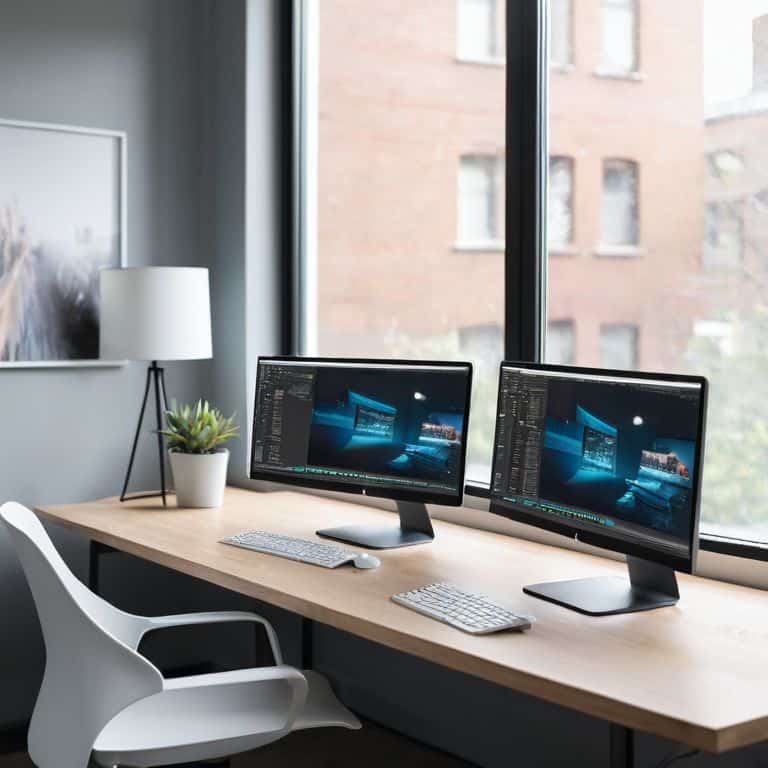
- Choose the Right Monitors: Consider the resolution, size, and connectivity options when selecting your dual monitors to ensure they meet your needs and are compatible with your computer
- Position for Productivity: Experiment with different monitor placements to find the most comfortable and efficient setup for your workflow, taking into account factors like glare and viewing angles
- Calibrate for Consistency: Adjust the display settings on both monitors to achieve matching brightness, color, and contrast levels, which will help reduce eye strain and improve your overall viewing experience
- Select the Right Cables: Ensure you have the appropriate cables to connect your monitors to your computer, whether it’s HDMI, DisplayPort, or another type, and consider investing in a cable management system to keep your workspace organized
- Test Your Setup: Once you’ve configured your dual monitors, test them with different applications and scenarios to ensure everything is working as expected and make any necessary adjustments to optimize your setup
Key Takeaways for a Seamless Dual Monitor Experience
To get the most out of your dual monitor setup, ensure your computer’s graphics card supports multiple displays and that you have the correct cables
Configuring your dual monitors is easier than you think – just follow the step-by-step guide and don’t hesitate to reach out if you have any questions
With your new dual monitor setup, you’ll enjoy enhanced productivity, improved multitasking, and a significant boost to your overall computing experience
Unlocking Productivity
The moment you switch to a dual monitor setup is the moment you’ll wonder how you ever managed with just one – it’s a productivity superpower that’s easier to tap into than you think!
Leo Maxwell
Wrapping Up: You're Now a Dual Monitor Master
As we conclude this journey to a dual monitor setup, let’s recap the key points: we’ve covered the benefits of multiple monitors, including _increased productivity_ and _enhanced multitasking_ capabilities. We’ve also walked through a step-by-step guide on how to configure your dual monitors with ease, ensuring that you can enjoy a seamless experience. Whether you’re a gamer, a graphic designer, or simply someone who wants to boost their workflow, this setup is sure to _revolutionize your daily routine_.
Now that you’ve made it to the end of this guide, I hope you’re as excited as I am about the potential of your new dual monitor setup. Remember, the goal is not just to have more screens, but to _unlock new possibilities_ for your work and play. So go ahead, explore the infinite possibilities that this setup has to offer, and don’t hesitate to reach out if you need any more guidance – happy computing!
Frequently Asked Questions
What are the minimum system requirements for running a dual monitor setup?
To run a dual monitor setup, your system should have a decent graphics card, at least 4GB of RAM, and a relatively modern CPU. Don’t worry if that sounds techy – most computers from the last 5-7 years should be able to handle it. I’ll break it down in simpler terms if you need!
How do I know which ports on my computer to use for the second monitor?
Don’t worry, it’s easier than you think! Check your computer’s manual or look for labels on the back – you’re likely looking for an HDMI, DisplayPort, or VGA port. If you have multiple options, try the HDMI port first. And remember, have you tried turning it off and on again? Sometimes, a simple reboot can resolve any connectivity issues.
Can I use monitors with different resolutions and sizes in a dual monitor setup?
Yes, you can definitely mix and match monitors with different resolutions and sizes, but keep in mind it might affect your overall viewing experience. I recommend using monitors with similar specs for a seamless dual-monitor setup, but if you’re on a budget or already have one, we can make it work – I’ll walk you through the tweaks you’ll need to make.